
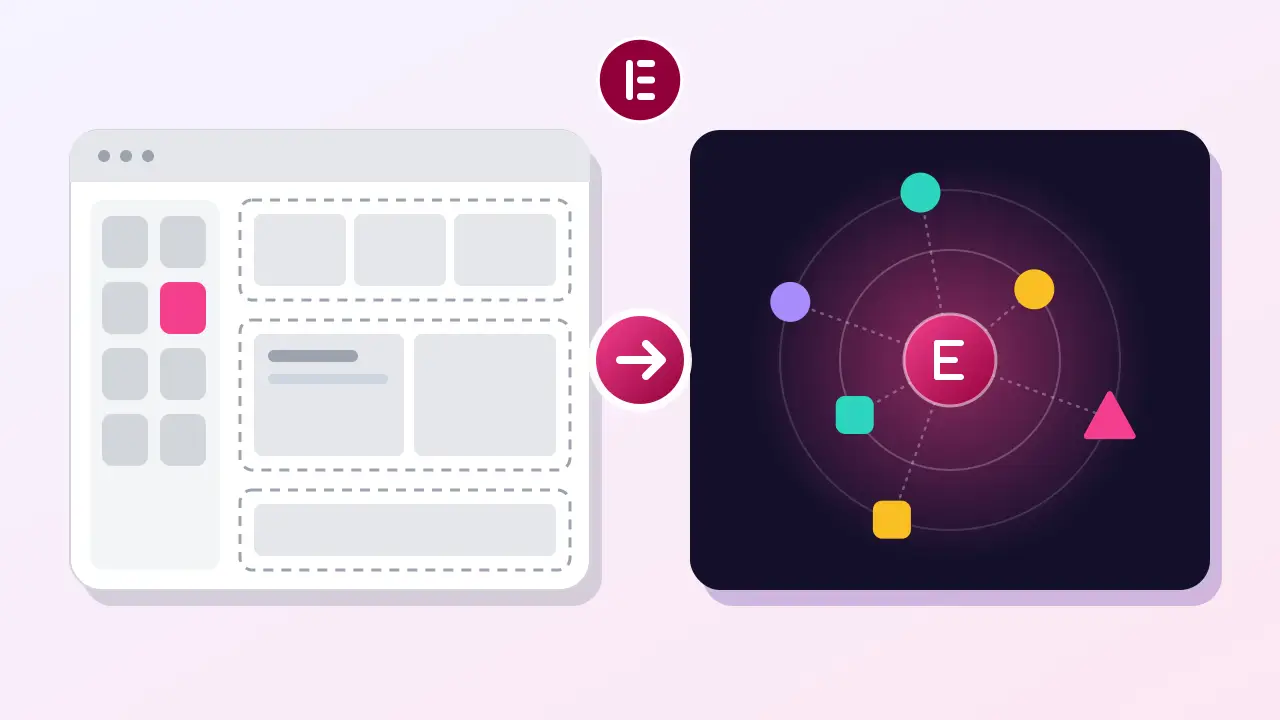
Version 4 of Elementor replaces multi-purpose widgets with small atomic elements, and replaces one-off styling with reusable classes, variables, and components. Since April 2026, new Elementor sites start on Version 4 by default. Existing sites stay the same until you activate the atomic editor, and old widgets keep working beside the new elements.
Many business owners describe the same moment of doubt (this is a composite of common cases). A marketing manager at a home services company logs in to update a landing page and sees a notice about atomic elements. A week later, a freelancer tells her the site should move to Elementor V4. She does not know what atomic means, and she fears the whole site will need a rebuild just as the busy season starts. On her first call with a web team, she asks whether she has done something wrong by ignoring the notice. The developer explains that nothing on her site changes until someone switches the new editor on, and that new pages can use the new tools while old pages stay as they are. She realizes the upgrade is a choice she can make one page at a time.
What Is Elementor V4?
Elementor Version 4 is the release of the Elementor page builder built on a new “atomic” editor, where every element handles one job and all styling flows through shared classes and variables. Elementor calls it an atomic, CSS-first architecture that separates structure, styling, and content.
Short Answer: Elementor Version 4 introduced the Atomic Editor. It builds pages from small atomic elements such as Div Block, Flexbox, Heading, Paragraph, and Image, and styles them with reusable classes and variables instead of per-widget settings. Classic widgets still work, so both systems can share one page.
Release Timeline
Here is how the rollout happened:
- February 2026: Elementor opened a Version 4 beta inside Elementor 3.35 for Free, Pro, and One users.
- April 2026: The official Version 4 FAQ states that all new Elementor sites run on Version 4 by default from this point.
- Existing sites: Owners activate the new features manually, whenever they choose.
Atomic Editor vs Classic Editor: What Changed?
The atomic editor changes how you build and style pages, while the classic editor stays the same for older content. The biggest shifts are smaller elements, global classes, design variables, reusable components, and cleaner HTML output.
Here is a side-by-side view:
| Area | Classic editor (Version 3) | Atomic editor (Version 4) |
|---|---|---|
| Building blocks | Large widgets with many built-in settings | Small atomic elements that do one job |
| Layout | Sections, columns, and containers | Div Block, Flexbox, and Grid elements |
| Styling | Set on each widget separately | Global classes shared across elements |
| Design values | Global colors and fonts | Variables for colors, fonts, and sizes |
| Reuse | Copy and paste sections or templates | Components that update everywhere |
| Text editing | Edit in the side panel | Inline editing for Heading and Paragraph |
Atomic Elements Replace Multi-Purpose Widgets
Elementor atomic elements are simple blocks, such as Heading, Paragraph, Button, Image, SVG, Div Block, Flexbox, Grid, and Tabs. Each one outputs leaner HTML than a classic widget, which wraps content in several extra layers.
Elementor Classes and Variables Replace One-Off Styling
Elementor classes work like CSS classes. You style a “Primary Button” class once, apply it anywhere, and change every button at once. Elementor variables store values such as a brand color or a heading size, so one edit updates the whole site. Atomic elements also support states such as hover, focus, and active, plus separate settings per device.
Components Replace Copy-and-Paste Sections
Components are reusable blocks, such as a hero section or a pricing card. Elementor says editing a component updates every instance, while admins can open specific fields for per-page edits. Our walkthrough on building a popup with the atomic editor shows these tools in a real task.
Will Elementor 4 Break Your Existing Site?
Updating to Elementor 4 does not change an existing site on its own. Elementor’s official FAQ says nothing happens to existing sites, apart from a notice about the new Atomic Elements section that you can activate or dismiss.
Classic widgets and atomic elements can sit on the same page, so you can adopt Version 4 page by page. Old pages keep rendering and editing the way they always have. The real risk comes from add-on plugins and custom code, so test every major update on a staging copy first. Our website maintenance checklist explains how to fit staging tests into a regular update routine.
How Do You Turn the Atomic Editor On or Off?
You turn the atomic editor on in the Elementor settings after updating to the latest version. The same screen lets you switch the atomic features off again if a page builder add-on or workflow does not work with them yet.
Follow these steps:
- Back up the site and update Elementor to the latest version.
- Open WP Admin, then Elementor, then Editor, then Settings.
- Find the Atomic Editor option (earlier releases labeled it “Version 4”) and click Activate.
- Open a test page and look for the Atomic Elements section in the elements panel.
To disable the atomic editor, return to the same settings screen and deactivate it. Pages you built with atomic elements need atomic features to edit properly, so decide before you build important pages with them.
What Is Still Missing in the Atomic Editor?
The atomic editor still lacks atomic versions of some classic widgets, and Elementor keeps adding elements with each release. Before you switch a live site, check that every widget and add-on your pages depend on works in Version 4.
Here is what early reviewers commonly report:
- Some popular widgets, such as galleries, carousels, and accordions, have no atomic version yet.
- Custom CSS options feel more limited than in the classic editor.
- Rich text formatting inside Heading and Paragraph elements has fewer options.
- Some custom field and add-on plugins need updates before they work smoothly with atomic elements.
These gaps change quickly, so read the latest Elementor release notes before you decide. Our earlier guide to what the atomic editor is and who it suits covers the basics for first-time users.
Should You Switch to Elementor V4 Now?
Switch new sites to Elementor Version 4 now if the widgets you need already exist as atomic elements. For existing sites, keep the classic editor on current pages and build new or redesigned pages with atomic elements, one page at a time.
Here is how the decision usually looks for different users:
- Elementor users with a small site: Wait until you redesign a page, then try atomic elements on that page.
- WordPress web designers and freelance designers: Learn classes and variables now, because they shape how future Elementor projects work.
- Web design agencies: Build a shared library of classes, variables, and components to speed up every new client site.
- Site owners using Elementor without a developer: Leave the setting off until someone tests it on a staging copy.
If you want a consistent design system built the right way from the start, our WordPress design and UX services focus on exactly this kind of work.
For sites that need regular plugin and builder updates without surprises, ongoing website maintenance handles updates and fixes errors as they appear.
Conclusion
Version 4 changes Elementor from widget-by-widget design to a system of atomic elements, classes, variables, and components. Updating does not change your existing pages, and classic widgets keep working beside the new elements. New sites can start with the atomic editor today, while older sites can move one page at a time after a staging test and a check for missing widgets.
If you would like help planning the move or testing it safely, talk with our team in plain language.
Related Reading
- WordPress White Screen of Death After an Update: how to recover when a plugin, theme, or builder update leaves a blank page.
- There Has Been a Critical Error on This Website: how to read the error details and fix a plugin conflict.
- Quick Tips to Optimize Your Website for the Mobile Generation: practical ways to make pages work well on phones and tablets.
Frequently Asked Questions
Do I need Elementor Pro to use the atomic editor?
No. Elementor made the Version 4 beta available to Free, Pro, and One users, and the core atomic features come with the free plugin. Elementor says Pro users get additional capabilities on top of that core. Check Elementor’s feature list to see which advanced tools, such as certain forms or interactions, need a Pro plan.
Can I use classic widgets and atomic elements on the same page?
Yes. Elementor’s official FAQ confirms that new and existing sites can combine legacy widgets and atomic elements on the same page. That lets you add atomic elements to an existing layout without rebuilding it. Keep each section consistent where you can, so future edits stay simple for you and anyone else who works on the site.
Is the atomic editor faster than the classic editor?
Atomic elements output leaner HTML with fewer wrapper layers, and shared classes cut repeated styling code. That usually helps page weight, but Elementor’s official announcements give no benchmark figures. Measure your own pages with Google PageSpeed Insights before and after you rebuild them, because images, fonts, and plugins still affect speed far more.
Can I disable the atomic editor after turning it on?
Yes. Go to WP Admin, then Elementor, then Editor, then Settings, and deactivate the atomic editor option. Pages built with classic widgets keep working as before. Pages you built with atomic elements need the atomic features to edit properly, so test on a staging copy before you rely on them for important pages.