
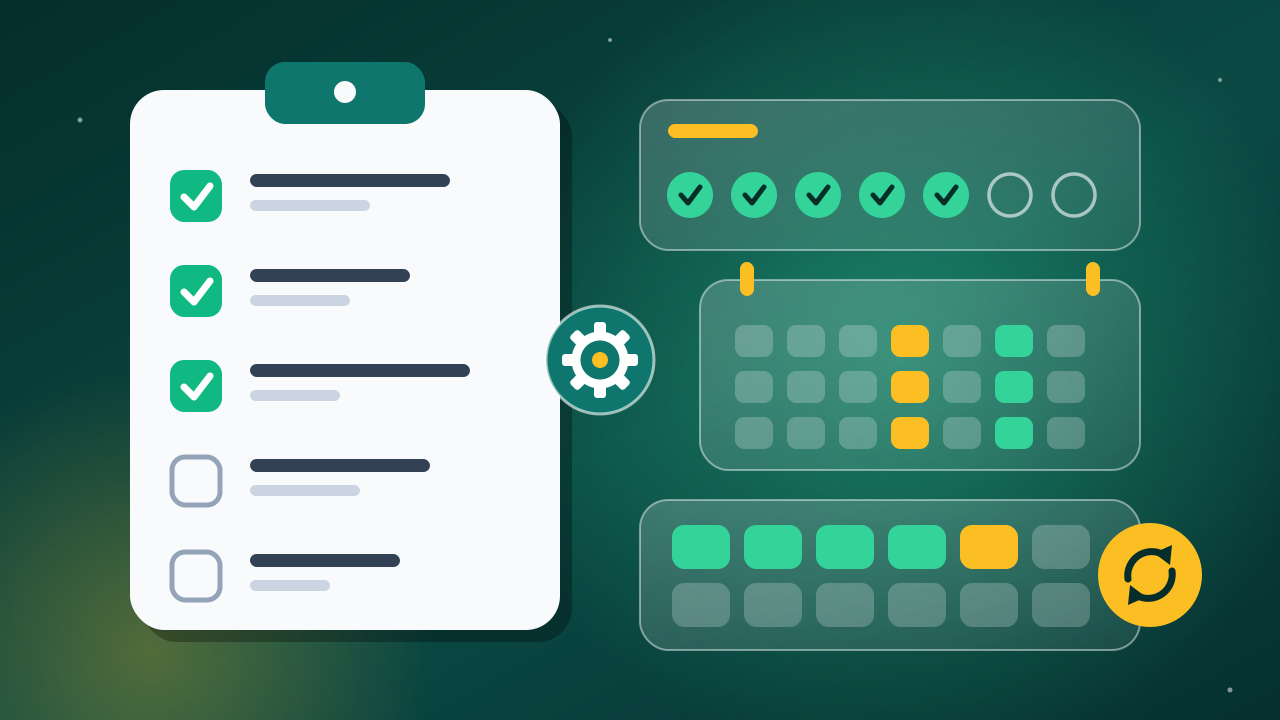
A small business website needs backups and security checks every week, speed and link checks every month, a content and security review every quarter, and renewals plus a full audit every year. Busy sites and online stores should back up daily. Following a simple schedule keeps the site fast, safe, and online.
Many business owners describe the same quiet worry (this is a composite of common cases). A marketing manager at a family-run clinic inherits the company website from a colleague who left. She has no list of passwords, no idea when anyone last updated it, and a pile of plugin notices she feels nervous to click. Every week she means to look at it, and every week something more urgent wins. On her first call with a web team, she admits she feels embarrassed that the site has gone untouched for months, and she fears one wrong click will take it down. The developer walks her through a short website maintenance checklist, split into weekly, monthly, and yearly jobs. She realizes the work fits into small, regular steps instead of one huge rescue project.
What Is a Website Maintenance Checklist and Why Does It Matter?
A website maintenance checklist is a repeating list of tasks that keeps your site secure, fast, and accurate, grouped by how often each task needs doing. It turns vague “upkeep” into clear jobs that one person can finish in a set time.
Website maintenance means updating software, backing up files and the database, scanning for security problems, checking speed, and keeping content accurate. A checklist matters because most website problems, from hacks to broken forms, start with a task someone skipped.
Here is what regular maintenance protects:
- Security: Outdated plugins and themes give attackers an easy way in.
- Revenue: A broken contact form or checkout quietly costs you leads and sales.
- Search visibility: Slow pages and broken links hurt how visitors and search engines see your site.
- Recovery: A fresh backup turns a disaster into a short restore.
Daily and Weekly Website Maintenance Tasks
Daily and weekly website maintenance tasks cover backups, updates, uptime, and security scans, because these protect you from the most expensive failures. The official WordPress backup guide recommends weekly backups for smaller sites and daily backups for high-activity sites.
Daily Tasks
Here is what busy sites, online stores, and sites with daily bookings should handle every day:
- Run an automatic backup of both the files and the database.
- Use an uptime monitoring tool that emails you when the site goes down.
- Confirm new orders and form entries arrive as expected.
Weekly Tasks
Every website, even a small brochure site, needs these weekly tasks:
- Back up the full site and store a copy away from your server.
- Install plugin updates, theme updates, and minor WordPress core updates.
- Run security scans for malware and failed login attempts.
- Submit a test entry through every form and confirm the email arrives.
- Delete spam comments and spam form entries.
Monthly Website Maintenance Tasks
Monthly website maintenance tasks focus on performance, broken links, and how real visitors use your site. These checks take longer than weekly jobs, but they catch slow decline before customers notice it.
Work through this monthly list:
- Test page speed. Run your homepage and top pages through Google PageSpeed Insights and note the Core Web Vitals scores.
- Fix broken links. Use a link checker plugin or an online crawler, then update or remove dead links.
- Check mobile layouts. Open key pages on a phone and a tablet. Our tips for optimizing your website for mobile explain what to look for.
- Review analytics and Google Search Console. Look for pages losing traffic and new crawl or indexing errors.
- Test a backup restore. Restore last week’s backup to a staging site to prove the backup actually works.
Quarterly and Yearly Website Maintenance Tasks
Quarterly and yearly website maintenance tasks review the big picture: content accuracy, user accounts, renewals, and legal pages. These jobs happen less often, but skipping them causes the most embarrassing problems, like an expired domain or an outdated price list.
Quarterly Tasks
Here is what to review every three months:
- Update service pages, prices, team bios, and opening hours.
- Remove user accounts for former staff and contractors.
- Delete plugins and themes you no longer use.
- Run a full security review. Our guide on how to tell if your website is secure walks through what to audit.
Yearly Tasks
Every year, handle these larger jobs:
- Renew your domain, hosting plan, and any paid plugin licenses before they expire.
- Confirm your SSL certificate renews automatically.
- Review your privacy policy and terms pages.
- Run a full design and user experience review, and plan any redesign work.
- Write down how you would restore the site after a crash, and who you would call.
WordPress Maintenance Checklist: Extra Tasks for WordPress Sites
A WordPress maintenance checklist adds a few tasks on top of the general list, because WordPress relies on core software, themes, and plugins from many different developers. Each one needs updates, and each one can conflict with the others.
The Hardening WordPress guide on WordPress.org recommends keeping WordPress and plugins updated, deleting unused plugins, using strong passwords, and turning on two-step authentication. Add these WordPress tasks to your schedule:
- Test major updates first. Run big WordPress or plugin updates on a staging copy before your live site.
- Update one plugin at a time. Check the site after each update so you know which one caused a problem.
- Check Site Health. Open Tools, then Site Health, each month to see PHP version warnings and security notes.
- Clean the database. Remove old post revisions, spam, and expired temporary data every quarter.
If an update ever leaves you with a blank page, our guide to the WordPress white screen after an update shows how to recover step by step.
Should You Do Website Maintenance Yourself or Get Help?
You can handle website maintenance yourself if you have a few hours each month, a staging site, and confidence restoring a backup. Hand it to a team when the site brings in steady revenue, when updates make you nervous, or when nobody owns the job.
Here is a quick way to decide:
- Do it yourself if your site is small, changes rarely, and you enjoy the technical side.
- Get help if your site takes payments or bookings, runs many plugins, or has gone untouched for months.
A website maintenance program can take over plugin, theme, and core updates and fix errors as they appear.
Sites that also need firewall setup and malware cleanup benefit from dedicated website security services.
Conclusion
Website maintenance works best as a habit, not a rescue mission. Back up and update every week, check speed, links, and mobile layouts every month, and review content, users, and renewals every quarter and year. WordPress sites need a few extra steps, mainly testing updates on staging and deleting plugins you no longer use. Print this list, pick one owner for each task, and add the dates to a shared calendar.
If you would like help building a maintenance routine for your site, get in touch with our team for a plain-language conversation.
Frequently Asked Questions
How often should I back up my website?
Back up a small website at least once a week and a busy site or online store every day, as the official WordPress backup guide recommends. Each backup should include both the files and the database. Keep copies in more than one place, such as cloud storage and your own computer, so one failure cannot wipe out every copy.
How often should I update WordPress plugins?
Check for plugin updates every week and install them once you have a fresh backup. Update one plugin at a time and look at the site after each one, so you can spot a conflict right away. Test major version updates on a staging copy first, especially for page builders, WooCommerce, and form plugins.
What happens if I skip website maintenance?
Skipping maintenance lets small problems pile up. Outdated plugins become security risks, forms can stop sending leads without any warning, and pages load more slowly. A site left alone for months often needs a larger repair later, and without a recent backup, one crash can mean rebuilding pages from scratch.
Do non-WordPress websites need maintenance too?
Yes. Every website needs backups, security checks, speed tests, link checks, and renewals, whether it runs on WordPress, Shopify, Wix, or custom code. WordPress sites simply add extra tasks for core, theme, and plugin updates. Hosted builders handle software updates for you, but you still own content, forms, domains, and analytics.